Whitelisting Domains
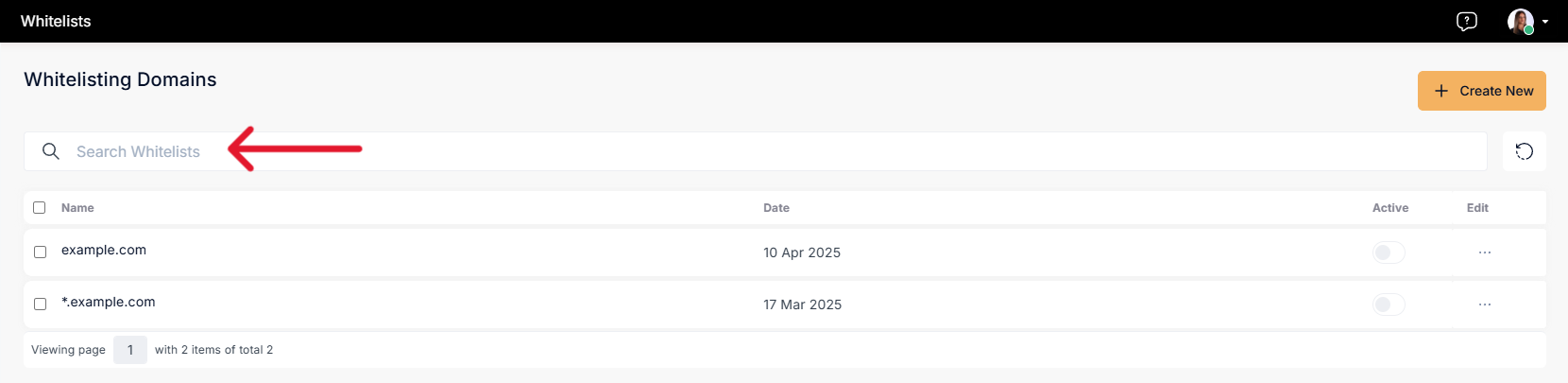
Whitelisting Domains is a feature that allows users to specify which domains are allowed access or usage in the system, enhancing security and control.
Accessing Whitelisting Domains
In VP Player, Whitelisting Domains are located under the Properties section in the left navigation bar.
- Navigate to Whitelists from the left navigation bar.
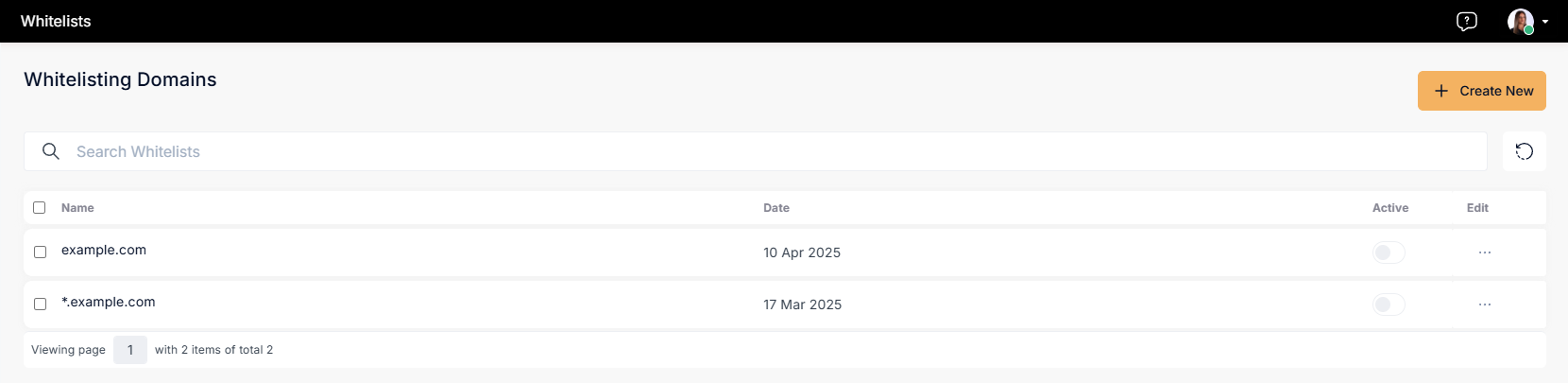
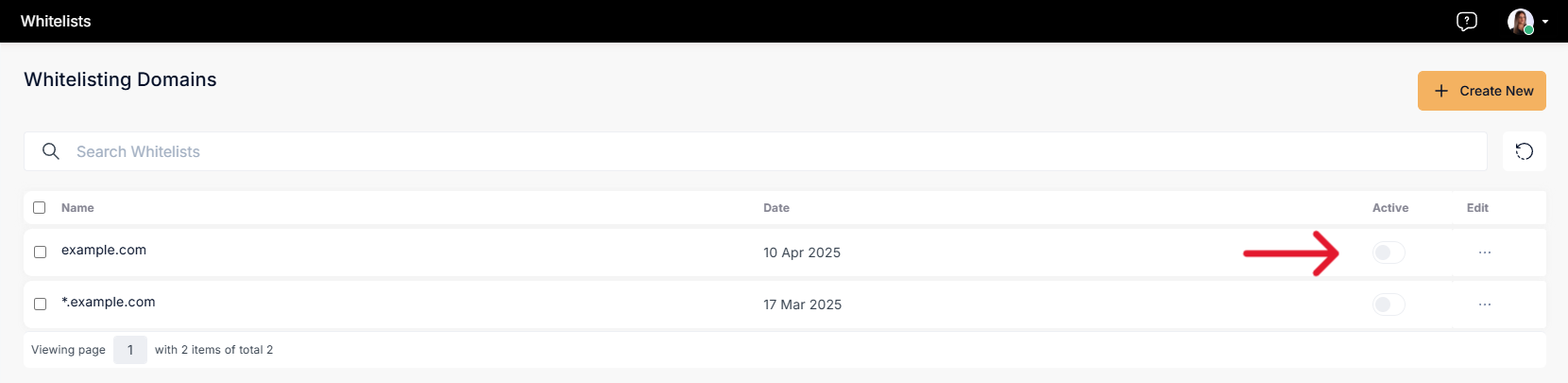
- The Whitelisting Domains page shows a list of configured domains including:
- Name of the domain
- Date added
- Status (Active/Inactive)
- Edit options
Creating a Whitelisted Domain
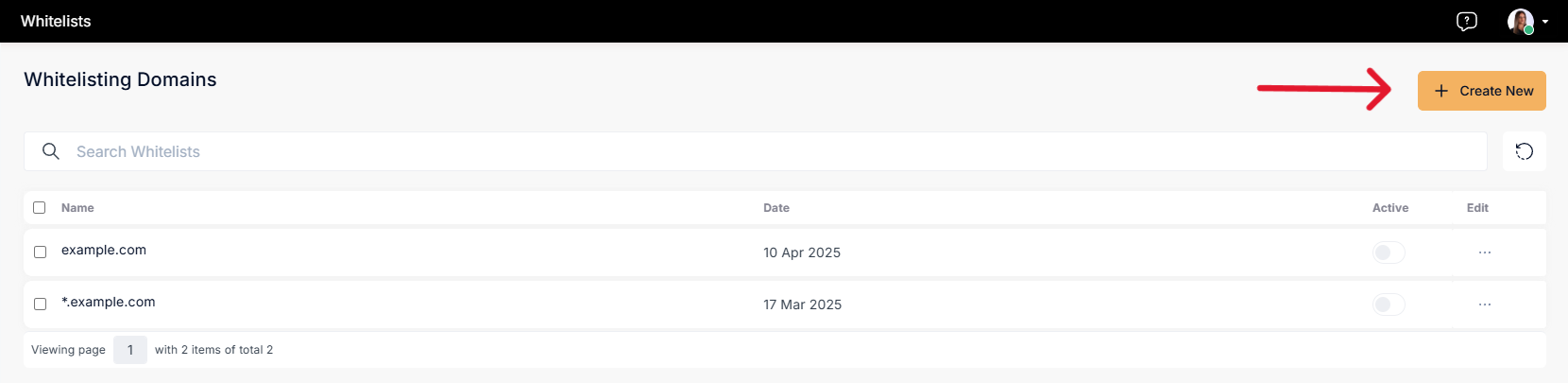
- Click on the “Create New” button in the top right corner.
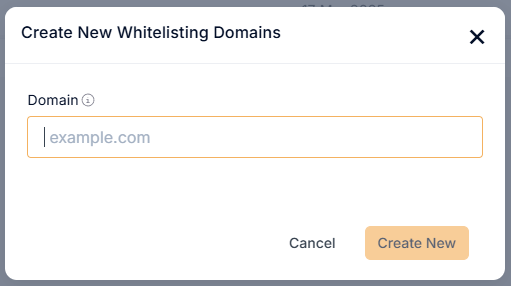
- On the Modal enter the domain name (e.g.,
example.com).
info
You can use * to include all subdomains of a domain. Example: *.example.com will match sub.example.com, media.example.com, etc.
- Click Create New to add the domain to the list.
Activating or Deactivating a Domain
- The activation toggle is available directly in the list table under the Active column.
- Click the toggle to enable or disable the domain.
Editing or Deleting a Domain
- Click the three dots under the Edit column for the respective domain.
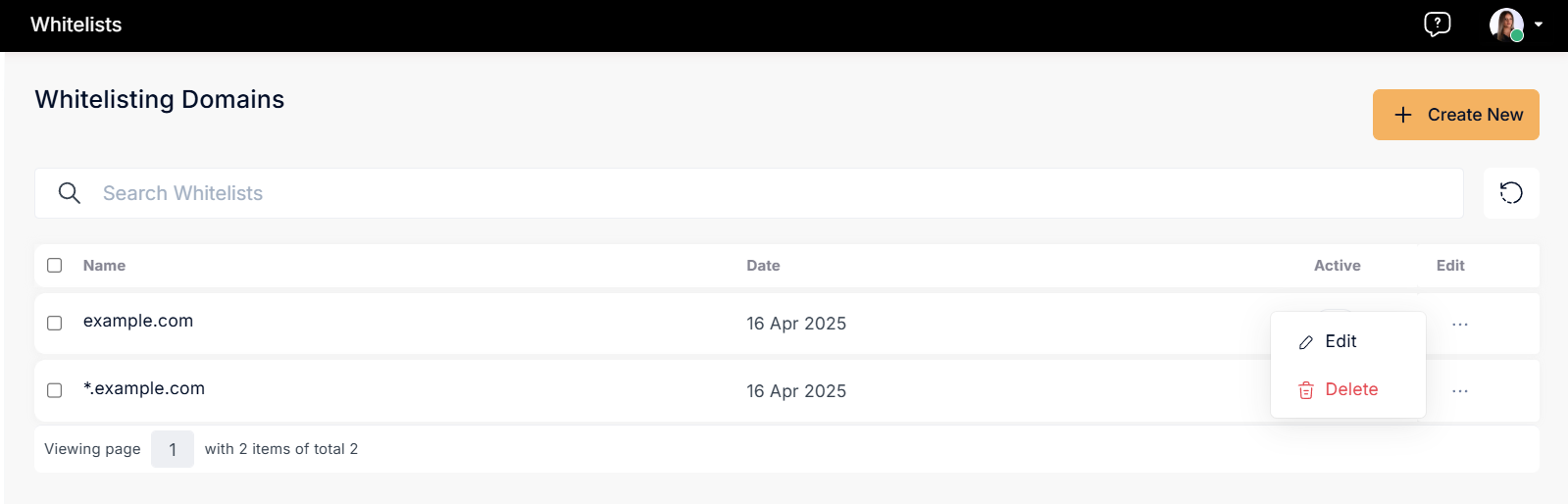
- Choose Edit to update the domain name.
- The same wildcard (
*) format can be used during editing. - Choose Delete to permanently remove the domain from the whitelist.
Searching Whitelisted Domains
- Use the search bar at the top of the list to filter domains by name.